Diagrams
The Diagrams tab draws the pictures that sit beside a roadmap: the process a request travels through, the journey a customer takes, the problems an item is meant to solve. You type the content; Roadmap Flow lays it out, lines it up and colours it in your brand. Every step can say whether it is live, planned on the roadmap, or still missing, and can link to the roadmap items that deliver it.
What it does
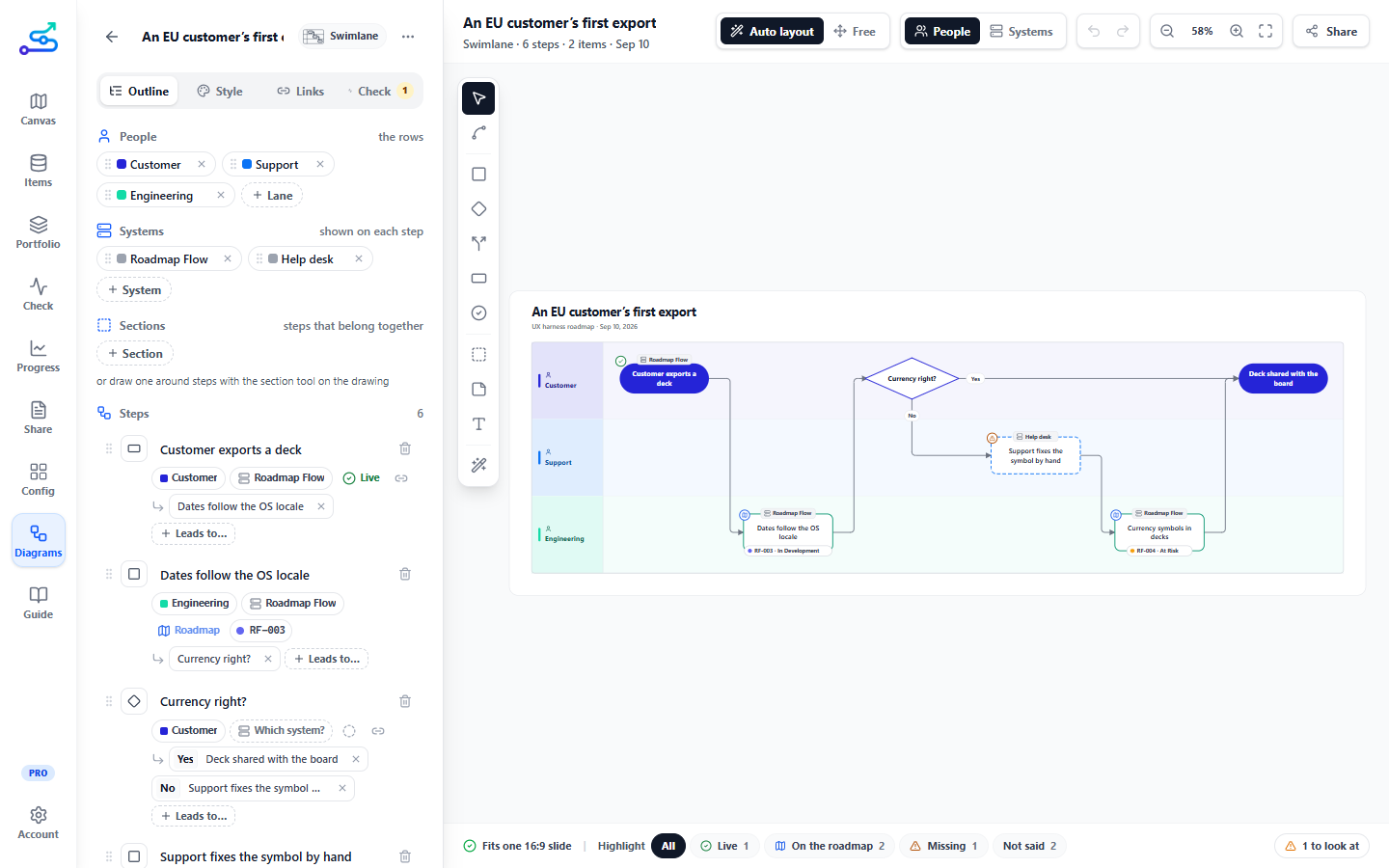
Nine kinds of diagram, each with a sentence in the app on when it fits:
| Type | Best for |
|---|---|
| Swimlane process | A request that travels between teams or systems. The rows switch between people and systems; the other one shows on each step. |
| Flowchart | A rule people follow, with yes/no decisions and paths that run in parallel. |
| Mind map | Breaking a goal, a launch or a whole roadmap into parts. |
| User journey map | Showing, stage by stage, where the roadmap removes pain. Short keeps each box to a few lines; Full text shows every word. |
| Opportunity solution tree | Explaining why an item is on the roadmap and what it should change. |
| 2×2 matrix | Value against effort, or priority against confidence, before a prioritisation call. |
| Service blueprint | Finding where a service breaks behind the scenes, and which backstage work or system the roadmap has to build. |
| Story map | Planning a first release that works end to end, then what comes after it. |
| System context | Showing engineering, security or a partner what a new product touches before anyone commits to it. |
The left side of the page is the outline: the diagram written as a list. Type a step and press Enter for the next one. Drag a row by its handle to reorder it. Under each step, small chips say who does it, which system it runs in, where it stands, and where it leads. A step can lead to several others: two ways out of a plain step run in parallel, and a decision's lines carry its answers. Click a shape on the drawing and the outline scrolls to its step.
Split and join: work that happens at the same time
The diamond with a + is a split or a join, and it always comes in a pair. A split starts several paths at the same time; a join waits until every one of them is done before the process carries on. Use it when the work really runs side by side: Engineering builds the feature while Marketing writes the launch note, and the release goes out only when both are finished. The drawing says which is which, under the shape: At the same time or When all are done.
If only one of the paths happens, it is a choice, not parallel work. Use a decision instead, with an answer on each line.
The quickest way to draw it: select a step and press Then two paths at the same time on its toolbar, or pick Parallel paths under Leads to… in the outline. You get a split, two paths and a join, already connected to whatever came next. Rename the paths, or connect a third from the split. The check warns when a split's paths never meet again.
Where a step stands is one of three:
Built and running today
Planned, and linked to the features, epics or initiatives that deliver it
Needed, and not on the roadmap yet
The Highlight chips under the drawing dim everything except the live, the planned or the missing steps, so you can show a stakeholder exactly what is already there and what still has to be built.
A missing step is a gap in the roadmap, so close it from the diagram: select the step and press Add to roadmap on its toolbar. It becomes a planned item on the roadmap, in Next, linked to the step, which now reads On the roadmap. The Check tab's What to do next offers the same for every missing step at once, then any step that reads like a roadmap item but is not linked to it, and at most one diagram worth drawing next.
The roadmap shows the link too. A card whose item appears in a diagram carries a small Diagram chip that opens it, and an item's panel lists its diagrams. In that panel, Draw how this works starts a swimlane named after the item, attached to it, with the item as its first step.
The list of diagrams is grouped by type, newest first in each group, or shown all together under Recent. Search finds a diagram by its name, its people or the words in it, and each row shows how many of its steps are live, planned and missing. Worth doing next points to a diagram with steps missing from the roadmap, to work in Now that no diagram explains yet, and to the one diagram worth drawing next from the one you edited last.
On the drawing, Auto layout places every shape for you. Free lets you move shapes by hand and add sticky notes and labels; the board grows to hold whatever you place. Tidy up (the wand) makes it look finished without changing your arrangement: shapes that are nearly in a row or a column line up exactly, nearly even gaps become even, overlapping shapes move apart, and every line is routed again (straight wherever two shapes face each other) with its label where it reads best. Undo brings back what was there. To have the app place everything again instead, switch to Auto layout.
A sticky note opens for typing with one click; drag it to move it. Enter starts a new line, and a click outside saves it. A long comment widens the note and keeps growing, and the colour dots on its toolbar turn it yellow, blue, green, pink, purple or grey. On a mind map, the small button at the edge of a branch folds away the ideas under it and says how many are hidden; press it again to bring them back.
A diagram started blank, or from only the structure, is kept once you change something in it. Open one and leave without touching it, and it is not added to your list.
Lines work the way they do in Figma. Point at a step and four small dots appear on its sides: drag from one to another step to draw a line, or into empty space to create the next step there. Click a line to select it: drag either blue end to attach it exactly where you drop it on a shape's edge, or onto a different shape to reconnect it. The line's toolbar sets its arrows (one way, the other way, both ways or none) and its label. Double-click a line to label it, and drag a label along its line to wherever it reads best. While you drag, whatever the line will attach to, a shape or a section, is outlined in blue. The connect tool on the left does the same with two clicks: it draws one line and switches itself off; Esc, a right-click or a click on empty space also stops it. A selected line shows a white handle on each part that can move: drag one sideways to send the line another way, and the line keeps that route when shapes move. Reset the route on its toolbar hands it back to the app. Lines that run side by side a few pixels apart are drawn as one, so lines sharing part of a route read as one track. A label wraps onto up to three rows; a longer one shows in full on hover. A step, a start or an end grows taller with its name, up to eight lines, and the steps beside it stay in line. Point at a shape, or select it, and a small pen appears on its corner: click it to change the words (double-click or F2 work too). Clicking or dragging the shape itself only selects or moves it. When you link a step to roadmap items, the list shows every item's name in full.
In a flowchart or swimlane, a section frames steps that belong together under a name, such as Intake or Hand-off to product. Draw one with the section tool by dragging a box around the steps, or add one under Sections in the outline. Drag a section by its frame or its name to move it with all its steps and their lines; if Auto layout is on, the diagram switches to Free placement for you. A section is see-through: select it to pick its colour and how much colour fills it, so overlapping sections and the shapes behind them still show. A selected section has a handle on each corner and side: drag one, or the edge itself, to give the frame the shape you want. It never gets smaller than the steps it holds, and a step the bigger frame now covers joins it. Auto layout fits every section to its steps again.
Service blueprint: what happens behind each stage
A blueprint takes the stages a customer goes through and shows, under each one, everything it takes to deliver it, so a stakeholder can see where the service breaks behind the scenes and what the roadmap fixes. Name the stages, then answer a few questions for each one in the outline. Skip what you don't know; each answer fills its row on the drawing.
What does the customer do?
Fills the row Customer does. Under it runs the line where the customer meets you.
What does the customer see or receive?
Customer sees: a screen, an email, a receipt.
What do our people, or the product, do in front of them?
We do, in front. Below the next line, the customer sees nothing.
What happens behind the scenes?
Behind the scenes: the work nobody sees.
Which systems or processes hold it up?
Systems.
Where does it break, or make people wait?
Breaks or waits, in red.
You can also fill it in on the drawing: every empty box says what goes in it, and one click starts typing. + Stage at the end adds the next stage. Hover a row or a line for its formal blueprint name, such as Frontstage or Line of visibility, if your readers know them.
The check warns when a stage breaks or makes people wait but nothing in it is planned or marked missing, and when work in front of the customer has nothing behind it. From a journey map, What to do next offers a blueprint already filled in with its stages.
Story map: what goes into each release
A story map lays out what people do, left to right: the big activities along the top, the steps under each, then the stories under each step. Horizontal lines slice the stories into releases.
Start one from a roadmap and the initiatives become activities, the epics steps and the features stories, sliced by their time horizon (Now, Next, Later). The check warns when the first release skips a step, because a release that skips a step can't be used end to end. Drag a story onto another step in the outline to move it there.
System context: which people and systems it connects
Your main system sits in the middle and every other system it exchanges data with sits around it. Each line says what flows along it, such as Sends orders.
The one this diagram is about, in your brand colour
Any other system it exchanges data with: yours, a partner's or a vendor's. Grey unless you give it a colour.
A small figure, for when a person's own line matters
For each system, say what kind it is, and it is drawn that way: a system, a web app, a mobile app, a service or API, a database, a queue, files or reports, or a cloud service. Used by lists who uses it, shown small at the top of the shape; leave it empty for a back end nobody uses directly. Any shape can take a colour of its own from its toolbar.
Press Connect to draw a line and say what flows. Connecting two shapes that already have a line between them makes that one line two-way instead of drawing a second. Lines find their own way around other shapes and keep apart from each other; a label too long for its line shows in full on hover.
The section tool draws a boundary, such as Our company, around systems that belong together. A boundary can hold other boundaries, and a line can start from or end on a boundary, for "everything in here talks to that". A swimlane that says which system each step runs in offers a system context built from its hand-overs.
When to use it
- Before a review, to show how the roadmap changes a process or a customer's week, not just which items are coming.
- When a stakeholder asks "what is actually built today?" and the honest answer is a picture with three colours in it.
- When the same people and systems keep coming up: once one diagram is filled in, the next one offers them, and the diagram's own Check section suggests what to draw next.
When not to use it
- As a project plan. Diagrams explain; the roadmap still decides what happens when.
- For a whiteboard session with ten people. Diagrams are built by one person and shared; they are not a live drawing board.
3-minute flow
Open Diagrams
Click Diagrams in the left rail, then Guide me.
Say what you are explaining
Pick the closest answer; the app recommends a type and says why.
Start from an example
Rewrite the example's steps with your own, pressing Enter after each. Or pick Only the structure: the same shapes with placeholder words.
Say where each step stands
Use the chip under a step: Live, On the roadmap or Missing, and link the items behind it.
Share it
Share copies it to Figma, saves a picture or a slide, or adds it to the roadmap deck.
Best use cases
- A swimlane of intake to release, with the missing steps highlighted for the quarterly review.
- A journey map whose opportunities are linked to roadmap features, so their status shows on the page.
- A mind map drawn from the roadmap itself, for an executive who wants the whole thing on one slide.
- A service blueprint of onboarding, with the missing backstage work highlighted, to explain why an unglamorous item is on the roadmap.
- A story map drawn from the roadmap for release planning, with the first release checked for gaps.
- A system context for the security review of a new integration.
Common mistakes
- Placing every shape by hand. Leave Auto layout on until the content is right; switch to Free only to fine-tune.
- Questions with one answer. The Check tab flags them; add where the other answer goes.
- Marking steps "On the roadmap" without linking the items. Linked steps follow the roadmap by themselves; unlinked ones go stale.
Related guide pages
Availability
Building diagrams, pictures, SVG files and the Figma copy are on every plan. PowerPoint and PDF files of a diagram, and diagrams in the roadmap deck, are Pro, like the deck itself. Diagrams are saved in the workspace folder, in a file of their own beside the roadmap, so everyone sharing the folder sees them.